To verify Shadowrocket, check the developer, Shadow Launch Technology Limited, the official icon, and app ID 932747118 together—not just the name in search results. This guide is for first-time buyers, users setting up a new device, and anyone unsure which app is installed. Follow the checks in order to distinguish the App Store product, purchase status, and connection settings.
Three Checks to Confirm the App
Start by opening the full App Store product page and checking all three details before buying. The app name can help you find it, but a similar name or rocket icon alone does not prove it is the same product. Search rankings, promoted placements, and descriptions are no substitute for checking the developer and app ID.
Shadowrocket is a paid Apple-platform client, primarily for iPhone and iPad. Compatibility with Mac, Apple TV, and Apple Vision is listed on the same App Store page. Always refer to the App Store page for system requirements. A purchase button appearing on another device does not prove that your current device meets the requirements.
If any detail doesn't match, pause before purchasing and return to this site's official app verification page to reopen the specified product page. This guide explains how to verify lookalike search results; it does not infer their features or developer intent from a similar name.
Before You Buy: Open the Full Product Page
Use the search results only to locate the app; verify it on the product details page. Section placement can vary by device, App Store language, and layout, so use the section names below rather than fixed screen coordinates.
-
Open the App Store
Open the App Store on your device and search for Shadowrocket by its full name. Don’t buy the first result based on a partial search.
-
Open the Product Details
Tap a candidate app to view its developer information near the name, then scroll to Information and look for the relevant Provider or Seller field.
-
Verify the Developer
Confirm the developer is Shadow Launch Technology Limited, then compare the official icon shown here. If the full company name isn't visible near the app name on mobile, check the Information section instead of relying on truncated text.
-
Check the Link
Use Share on the product page to get its link and look for
id932747118. You can also reopen the product from this site's official app verification page. Once the app ID matches, check the price and compatibility shown on the current page. -
Complete the Purchase
Confirm the purchase through the App Store's system purchase flow. After installation, open the app and check its basic screens. Then follow the getting-started guide to import your existing configuration; a completed purchase does not mean a connection is ready to use.
If you can't find the app, first check the current App Store page and device compatibility information, then open it from the official app verification page. Not finding it in search does not establish whether an installed app is genuine, nor is it a reason to use another way to get it. Availability for purchase depends on what the current App Store page shows.
Developer Name: Check the Full Company Name
The developer should be Shadow Launch Technology Limited. Check the entire name, not just “Shadow” or a matching word in the description. A product description may mention an app, but that doesn't identify the entity that published it.
| Where to Look | What to Check | What Doesn't Count as Verification |
|---|---|---|
| Near the product name | Whether the developer is Shadow Launch Technology Limited | “Shadowrocket” in the title or a similar app name |
| Information section | The full entity name shown under fields such as Provider or Seller | A brand name written in the description |
| Product sharing link | Whether the app ID in the path is 932747118 | Search terms, ranking, or promoted placement |
If the App Store is set to Chinese, section names may appear in Chinese; this guide keeps the English labels to make them easier to match across devices. If the developer name is abbreviated, open the full Information section. Checking the complete entity name is more reliable than choosing between similar icons by appearance.
If the app is already installed, check its corresponding App Store product page as well. The Home Screen name and icon help you locate an app, but they are not a complete purchase record. To confirm which app you bought, check the product in your current Apple Account's purchase history rather than relying on a remembered price.
Official Icon and App ID: Compare the Artwork, Confirm the Number
The official icon features a rocket outlined in blue and purple on a white background. The image below is the official icon from this site's brand assets, provided for comparison with the App Store product page; it is not an app screenshot. Compare the overall design, background, and linework—not just whether it contains a rocket.
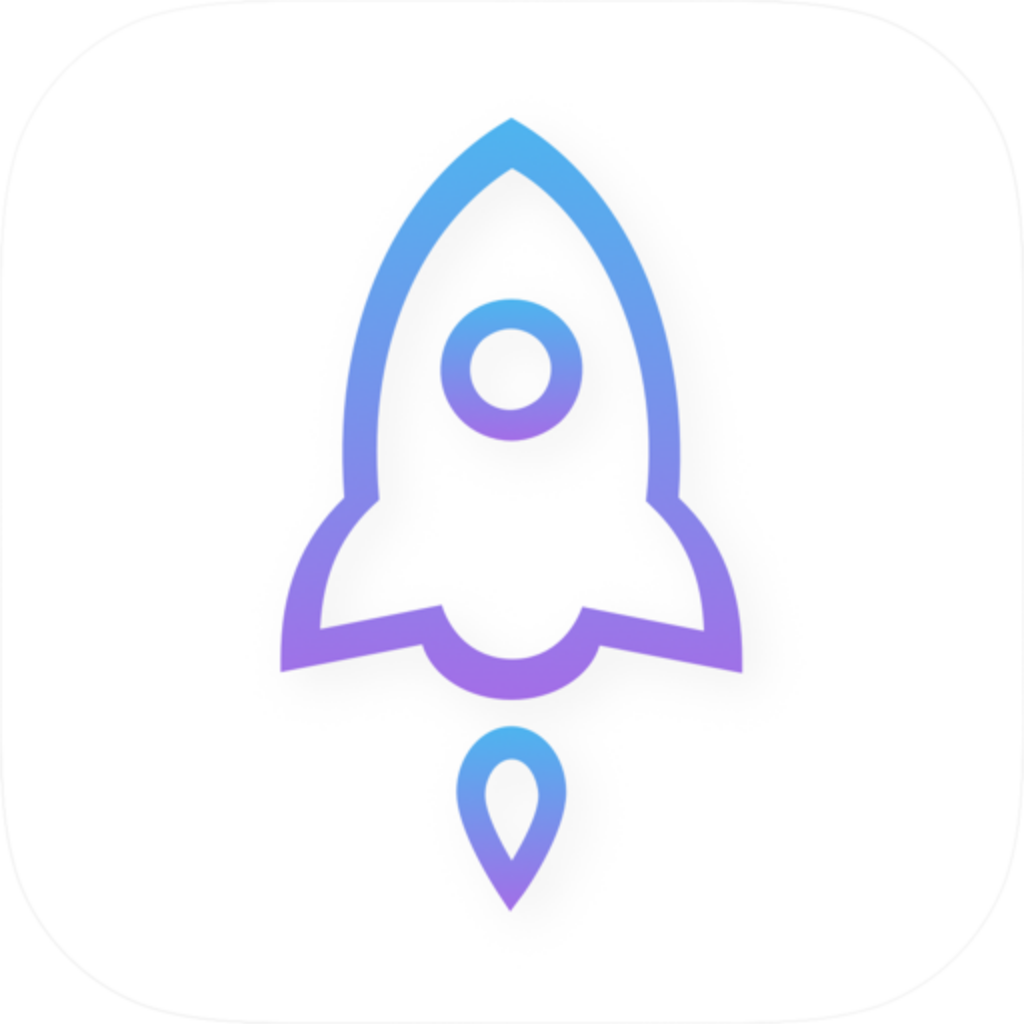
The app ID is the numeric identifier in the App Store product link. The specified product URL ends in id932747118: id is the prefix, and 932747118 is the number to check. The product name in the link is not the key verification detail; don't rely only on seeing “shadowrocket” in the URL.
- When you open the product page in a browser, check the address bar for
id932747118. - In the App Store, use Share to get the link, then check the ID in the product path.
- If the shared link has additional query parameters, check the app ID in the path. The entire link does not need to match character for character.
- If you're still viewing search results, an image preview, or an article, open the product details page. Those pages are not the item you purchase.
Bottom Line: Pause If Details Don't Match
If the icon looks similar but the developer or app ID doesn't match, don't proceed with the purchase. Return to the official app verification page, reopen the specified product, and check the full product name again before confirming.
What the Purchase Covers: Client App and Service Are Separate
Shadowrocket is a closed-source commercial app sold as a one-time purchase. Check the App Store page for the current price, which may vary by storefront region, currency, and display. This guide does not list a fixed amount or use price to determine whether an app is genuine. The purchase terms are also as shown on the App Store page.
Completing the purchase doesn't mean Home already has a working server, or that the app will automatically obtain a subscription. Verifying the product, purchasing the client, importing a configuration, and connecting are four separate steps. If the list is empty after installation, continue with configuration setup instead of assuming the product is incorrect.
- Before purchasing: Check the developer, icon, app ID, and compatibility with your device.
- To redownload: In the App Store, use the Apple Account that bought the app to check your purchase history and confirm the product. A button's status can't be interpreted without considering the account and product identity.
- Before configuring: Make sure your existing subscription or server details are still valid. An app purchase receipt is not a service credential.
- When troubleshooting: Track App Store purchase issues separately from connection issues in the app. Repeated purchases won't fix a configuration error.
The product page may show a price, a redownload icon, or Open, depending on the account's purchase history and the device's installation status. These indicate the current acquisition status; they do not replace the three identity checks. Before using the app on another Apple device, check App Store compatibility and purchase terms.
After Installation: Distinguishing the Interface from Routing Settings
After opening the app, use Home, Config, and Settings to find your way around: Home is for selecting a server and connecting, Config manages configuration files, and Settings contains app settings. Interface labels can help you navigate, but they don't replace App Store identity checks. Similar appearance or feature descriptions don't prove two listings are the same product.
If you've confirmed the product is correct but access doesn't behave as expected, check Home → Global Routing rather than purchasing again. The comparison below covers Shadowrocket's routing settings only. “Recommended” assumes your configuration rules have been checked and does not mean one mode works for every network.
Config
RecommendedRoutes requests according to the active configuration's rules. Before deciding whether a request should use a proxy, check the enabled file and rule order in Config, along with how FINAL is handled.
Best for: Applying rules to route traffic when you have a verified configuration.
Proxy
Routes traffic handled by the app through a proxy, for comparison with rule-based routing. Selecting this mode won't add server details or restore an expired subscription.
Best for: Comparing rule-based routing with a proxy connection when you have a working server.
Direct
Routes traffic handled by the app directly, without forwarding it through the selected proxy server. Accessing a website directly doesn't mean the proxy server is connected.
Best for: Checking local network access and distinguishing direct from proxy routes.
Scene in Global Routing provides routing choices for specific scenarios. Interpret it in the context of your setup; it isn't interchangeable with Config, Proxy, or Direct. Settings → On Demand manages when the app connects automatically and does not verify the app purchase. If the app connects automatically when your network changes, check this setting; it doesn't indicate that you have a different product.
Common Questions: Separate Verification from Troubleshooting
If the name and icon match, do I still need to check the app ID?
Yes. The name and icon help you find the app; the developer and app ID provide further confirmation. Check that all three match before purchasing. Familiar-looking details aren't a reason to skip the product link.
I bought the app, but there's no server. Did the purchase fail?
Not necessarily. The client purchase and server configuration are separate. First check the product and purchase status in the App Store, then use your existing subscription or server details to configure the app. Buying the client again won't add servers to the list.
The App Store shows Open. Does that prove the app is genuine?
Open means the product can be opened on the current device, but first make sure you're viewing the specified product. Check for developer Shadow Launch Technology Limited and app ID 932747118, then use the button to open that app.
Can I identify the app by its connection speed?
No. Speed depends on factors such as the current network, server, protocol, and routing configuration. Verify the app in the App Store; troubleshoot speed and connection issues separately after confirming its identity. Each requires different checks.
Keep the same verification order: open the full product page, check the developer and official icon, confirm the app ID, then review the price and compatibility. After purchasing, move on to configuration. For connection issues, troubleshoot the network and routing settings. This keeps “Is this the right product?”, “Did the purchase succeed?”, and “Is the configuration working?” as separate questions.