Official Guide / Quick Start
Shadowrocket Quick Start
Import an existing subscription → Global Routing → Connect and verify
Follow the five steps in order. Check your input first, then review the connection result. If something goes wrong, return to the relevant step instead of repeating the entire setup.
- 01 Add
- 02 Route
- 03 Connect
- 04 Verify
- 05 Troubleshoot
Step 01 / Enter Your Connection Details
Add Server: Add or Import
Choose either subscription import or manual setup, depending on the information you have. Continue once the entry appears after saving.
Have a subscription URL? Select Subscribe
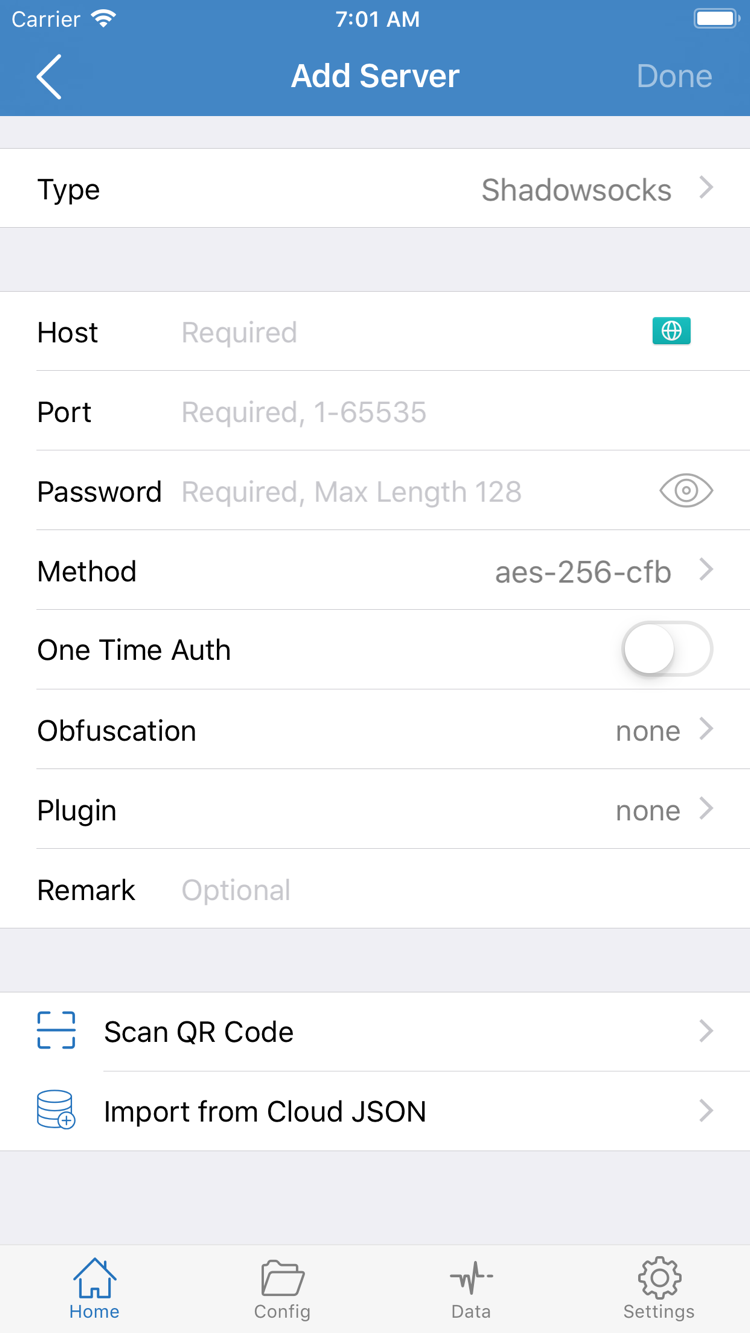
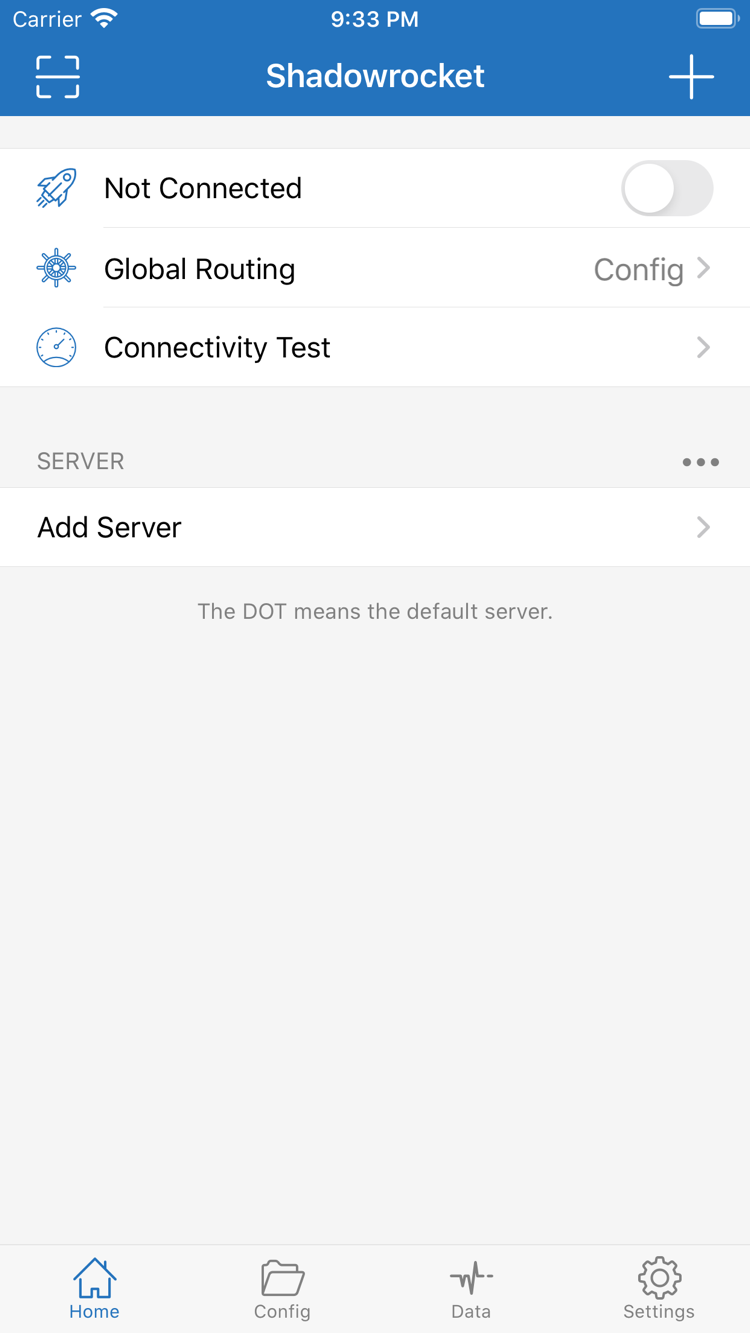
Open Home in Shadowrocket and find Add Server in the SERVER section, or use the add button on the page. In Add Server, tap Type and select Subscribe, then paste your complete subscription URL into the URL field. The available fields vary by type, so select Type before entering details. This helps prevent entering a subscription URL as the Host for a single server.
After pasting, check the entire URL from start to finish. It must come from a service you already use; make sure no query parameters are missing, and don’t include explanatory text, spaces, or line breaks. A subscription URL may contain credentials that identify your access, so protect it like a password. Don’t post it in public discussions or screenshots. Give the entry a recognizable name, then save and return to Home. If prompted to update, follow the instructions to retrieve the subscription contents.
After importing, check SERVER for a subscription group and server entries. Seeing a group name doesn’t necessarily mean the contents were retrieved successfully. If the list is still empty, check that the URL is complete, that your current network can reach it, and that the subscription is still valid. Don’t keep changing Global Routing yet: retrieving subscription contents and choosing a connection mode are separate steps.
Have details for one server? Fill in the fields for its Type
If you have details for an individual server, select the matching protocol under Type in Add Server—for example, Shadowsocks, VMess, VLESS, Trojan, or WireGuard—then fill in the fields required by that type. The official screenshot shows fields such as Host, Port, Password, and Method, but not every protocol uses all of them. Enter the server hostname or IP address in Host and the port number in Port. Don’t enter a full web address that includes a path as the Host.
Match each authentication detail, encryption method, and transport parameter to the original information. For configurations that use TLS, make sure the server name and certificate-related fields also match. Don’t weaken verification requirements just to make a test pass. If your details are provided as a QR code, use Scan QR Code, then check Type and the key fields after scanning. Import from Cloud JSON is a separate import option, not a general-purpose subscription URL. Use it only if you already have information in the corresponding format.
After saving, return to Home and check that there are no duplicate entries and that the name and protocol are easy to identify. Importing saves connection details in the app; it doesn’t connect you or confirm that the server works. Keep one entry ready to test. Next, decide which routing mode it should use.
Step 02 / Choose How Requests Are Handled
Global Routing: Three Modes
Config, Proxy, and Direct determine how requests are handled. A server entry and a Config profile are not the same thing.
Return to Home and tap Global Routing. Choose a mode based on what you want to do, not just whether a server is selected. Config routes requests according to the current configuration file’s rules. Proxy sends requests through the selected proxy server, making it useful for testing without rule-related variables. Direct does not route requests through the selected proxy server. These modes change how requests are handled; they don’t fill in missing server details.
For a first connection, choose Config if you already have a verified configuration file. If you just want to check whether a newly added server can forward traffic, start with a controlled test using Proxy. Direct is useful for checking basic access on your local network, but not for testing the proxy server itself. After switching modes, return to Home and check the label next to Global Routing to make sure the change took effect.
Check the Current Configuration Before Using Config
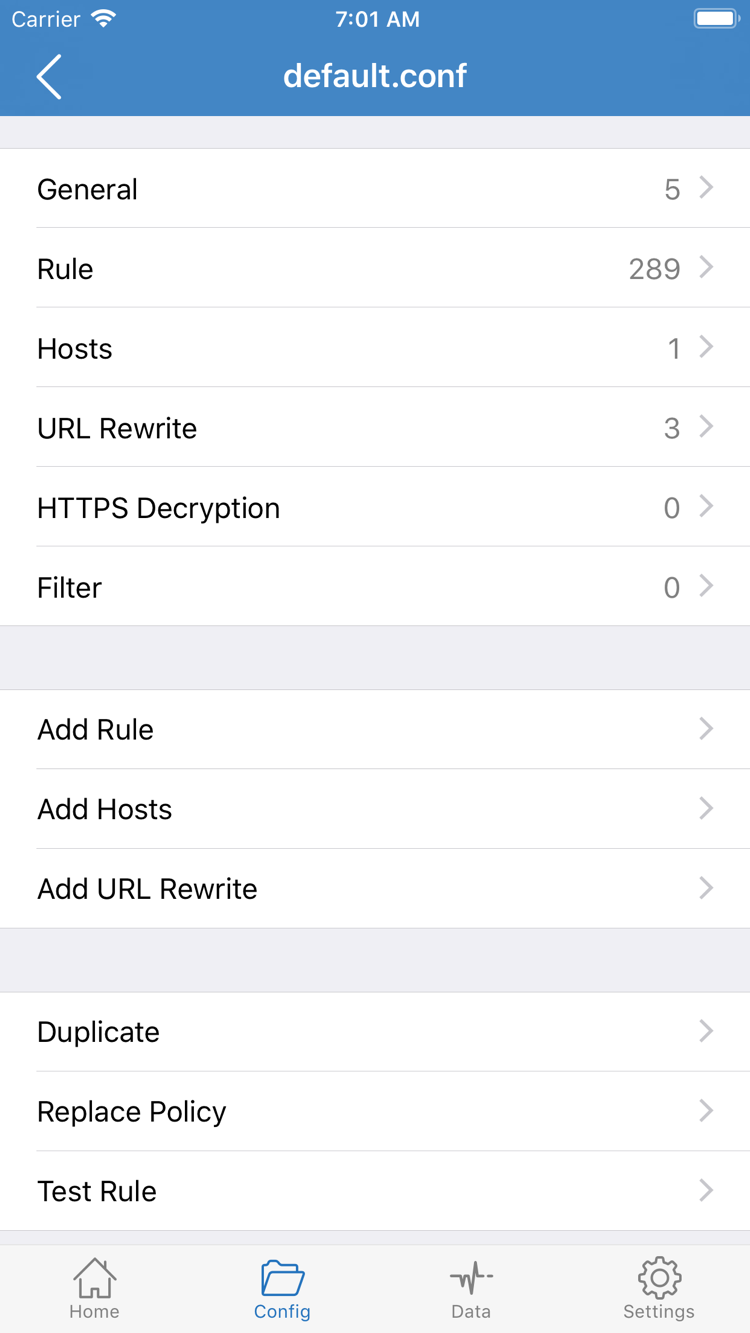
Tap Config at the bottom and confirm which configuration is active, then open it and review General and Rule. The official screenshot also shows sections for Hosts, URL Rewrite, and HTTPS Decryption. You don’t need to enable these features for a basic connection. In particular, settings related to certificates and content handling aren’t part of this first-connection walkthrough. Configure them separately once you understand what they do.
Rules in Rule are matched in order. For example, DOMAIN-SUFFIX,example.com,PROXY matches a domain suffix and applies the specified policy, while FINAL,DIRECT sends requests that didn’t match an earlier rule to DIRECT. These examples explain the syntax; you don’t need to add them to your configuration to follow this guide. Whether a request actually uses a proxy depends on the current file, rule order, and policy target.
A subscription typically provides server entries. It isn’t the same as a complete configuration that includes routing rules. If you’ve only imported a subscription and haven’t checked Config, don’t assume every app will be routed as expected. Avoid importing multiple unfamiliar rule sets to “fill in” missing settings, or it’ll be difficult to tell which change affected the result.
For this step, do just two things: confirm the Global Routing mode and the file used by Config. Leave detailed settings until after the connection works. You can read Settings: A Detailed Guide or check the FAQ for questions about rule matching and import differences. When you’re done, return to Home to connect.
Step 03 / Establish the System Connection
Home: Select a Server and Connect
Select an entry, confirm Global Routing, then turn on the switch at the top. System authorization and server authentication are separate things.
Return to Home and select the server you want to use under SERVER. If there are multiple groups, expand the right one first and check that the selected indicator is next to the intended entry. Don’t rely on its position in the list; entries may move after a subscription update. Then check Global Routing again to make sure it matches the purpose of your test.
Turn on the switch at the top of Home. When disconnected, the official screenshot shows Not Connected. The first time you connect, the system may ask to add a VPN configuration. This authorizes the app to handle traffic through the system network extension; it is not where you enter the remote server password. Read the system prompt, make sure the action is from Shadowrocket, and complete authentication as required by your device. If you cancel authorization, the app may not be able to connect normally.
After approving the request, return to Shadowrocket and wait for the status at the top to update. Don’t repeatedly toggle the switch while the status is changing. If it returns to disconnected right away, stop and check the message rather than assuming the connection works just because the switch is on. A VPN indicator means a related network connection has been established; it doesn’t by itself confirm that the selected server, DNS resolution, or routing rules are all working. Verify access in the next step.
Keep Conditions Stable During Your First Test
For your first test, keep the current network unchanged. Don’t switch between Wi-Fi and cellular or try multiple servers at the same time. If another VPN connection is configured on your device, confirm which one is actually active so you don’t mix results from different configurations. Network restrictions, server status, and authentication details can all affect the outcome; repeated retries alone won’t identify the cause.
On iPad, follow the same order: Home, SERVER, Global Routing, then the switch at the top. The layout may differ, but the steps are the same. After connecting, you can switch to the app you want to test, but avoid making multiple rule changes first. If you later change server details or connection-related settings, reconnect as prompted and test again so you don’t judge new settings based on an old connection.
When you’re done, return to Home and turn off the switch at the top. If it reconnects automatically afterward, note the network conditions and check On Demand instead of deleting all your details. Next, verify separately that the switch is on and that requests are handled as expected.
Step 04 / Verify Results in Stages
Connectivity Test and Real-World Access
Test results, system connection status, page access, and rule matching answer different questions. Check them in order.
Return to Home and use Connectivity Test to check the entry’s test result. The test method affects what the result means: reaching the server port doesn’t necessarily mean authentication, TLS, or subsequent requests will succeed. A failed test doesn’t necessarily mean all real-world access will fail. Don’t treat one reading as a complete assessment of the connection, or judge whether a server suits your needs by the number alone.
Next, open a page you need and are authorized to access. Test one destination first, wait for its main content to load, then try a normal action on the page. If the page opens but images, sign-in, or API requests fail, note which part is affected. A single page may use multiple domains, which can match different rules under Config. Repeatedly refreshing the same cached page doesn’t prove the connection is working with the new settings.
Use These Three Checks to Pinpoint the Issue
- Is the connection still active? Switch back to Home and confirm that the switch is on and the connection status hasn’t dropped. If disconnected, check authorization, server details, and network first—not Rule.
- Is the selected server being used? If the current mode is Direct, a page loading successfully doesn’t show that the proxy server works. Switch to Proxy for a comparison test, then return to Config if needed.
- Are the rules doing what you expect? In Config mode, check the current Rule and relevant connection records for the destination request. Don’t assume that because one page works, other domains or all apps will use the same policy.
For more clues, check traffic changes in Data or use diagnostic records to see how requests are handled. Traffic changes are only an indication: background apps may also be using the network, so an increase doesn’t prove that the page you tested used the intended server. Record the destination domain, test time, and Global Routing mode to make the test reproducible.
If the Proxy test works but Config fails, check the rules, policies, and DNS settings first. If both modes fail, check the server details and network. After verification, restore your intended mode and run one brief test. For more complex routing questions, see the FAQ on Connections and Routing. There’s no need to troubleshoot every advanced feature during your first setup.
Step 05 / Troubleshoot with Minimal Changes
Settings and Common Issues
Change one condition at a time, keep the original value, and test again. Identify where the failure occurs before changing settings.
Import Failed or the Server List Is Empty
Return to Step 01 and check that the subscription URL is complete, that you selected Subscribe, and that the subscription contents are accessible on your current network. An expired URL, a login page response, or an unsupported response format can prevent the list from loading. Don’t enter a subscription URL as a regular server Host. For manual setup, compare Type, Host, Port, authentication, and transport fields with the original details, paying close attention to spaces or missing characters introduced when pasting.
If you need to ask the provider of your original connection details for help, describe the stage where it failed and the message you saw. If needed, share a screenshot with sensitive fields covered. Don’t post the full subscription URL, password, or private key publicly. Before deleting and recreating an entry, make sure you can still access the original details so you don’t lose your only copy.
Test Failed or No Access After Connecting
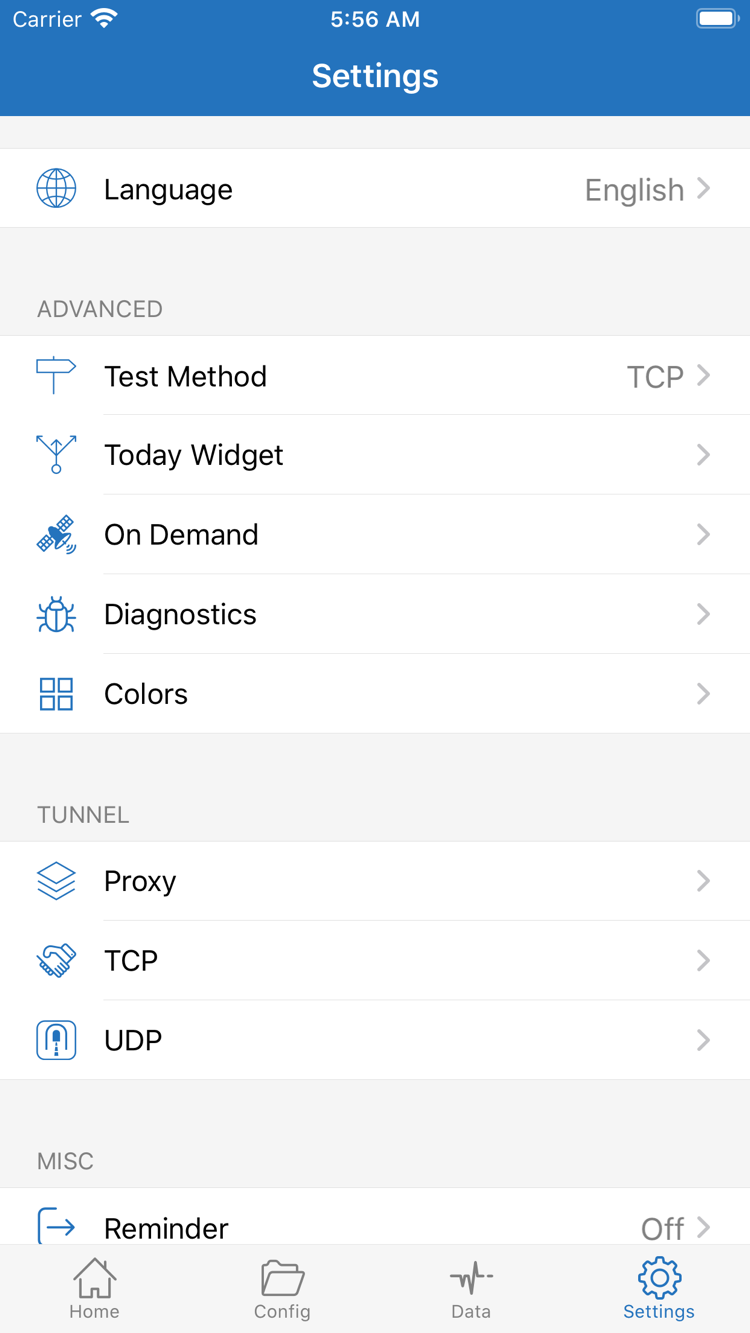
First confirm that the device has basic network access, then check the selected entry. Open Settings and review Test Method to understand how Connectivity Test is checking the connection. Changing the test method changes what the test measures; it won’t fix incorrect details. If results differ on another network, note the difference. Don’t change server settings at the same time, or you won’t know which side caused the issue.
If the system connection stays active but the page still fails, compare Proxy and Config as described in Step 04. If Proxy works but Config doesn’t, check the current Config rule targets, DNS, and related settings. For certificate or server name errors, check the TLS details against your original information. Don’t make disabling verification your standard fix. Look into TCP, UDP, or transport-specific details only after narrowing down the problem.
Unexpected Auto-Connection and Diagnostic Records
Find On Demand in Settings and check whether connection behavior is set to trigger under particular network conditions. It’s separate from the switch on Home. If you’re troubleshooting unexpected reconnections, note the current settings, then temporarily disable the relevant automatic triggers to compare. Today Widget is a shortcut, not a substitute for checking the status on Home.
For more clues, check Diagnostics and any available logs. Note the error type, routing mode, and network conditions at the time. Logs may contain domains, addresses, and connection identifiers, so hide sensitive information before sharing them. Don’t keep detailed records longer than necessary. Avoid changing Proxy, TCP, UDP, and other settings all at once; they aren’t general-purpose connection repair switches.
After changing one setting, return to Home, reconnect if needed, and test the same destination again. If it still fails, classify the issue as “import,” “connection,” “server access,” or “rule handling,” then check the relevant guidance in the FAQ. For details on DNS, On Demand, test methods, and logging, read Settings: A Detailed Guide. This quick start is complete once you’ve checked the import, routing mode, connection, and real-world access.